$ 0019. Create New Django Commands
| Author | luna-negra |
| Created On | 2024-11-29 11:42:00+00:00 |
| Edited On | 2024-11-29 11:47:00+00:00 |
| Tags | #django #new command #django-admin |
I. Preview
If you use a Mongo DB as a database in django, you can not use Django's User functions such as authenticating login user or assigning session to login user, and so on. Once you decide to use Mongo DB with Django, you have to create these functions from the scratch. In addition, you can not create a admin user with 'django-admin' command because Django deos not support MongoDB as a default.
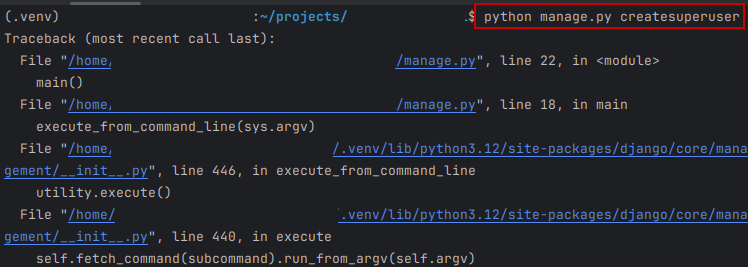
Now, My user class does have only a part of fields that are required by Django's user function. In addition, 'settings.py' file in my project does not have any default database setting because I am using Mongo DB.
Evne if I create a custom user manager class, I could not use createsuperuser command, because Mongo DB is not in a list of supported database.
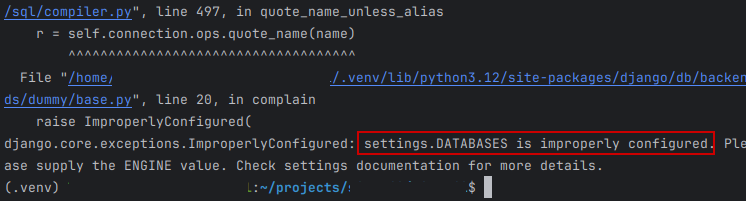
Then is it not possible to create superuser in a project that use MongoDB for database?
II. How Django Command Works
Let me find default options for 'manage.py'. Django contains files that defined each commands in each default application folder. In detail, 'management > commands' folder in each Django application.
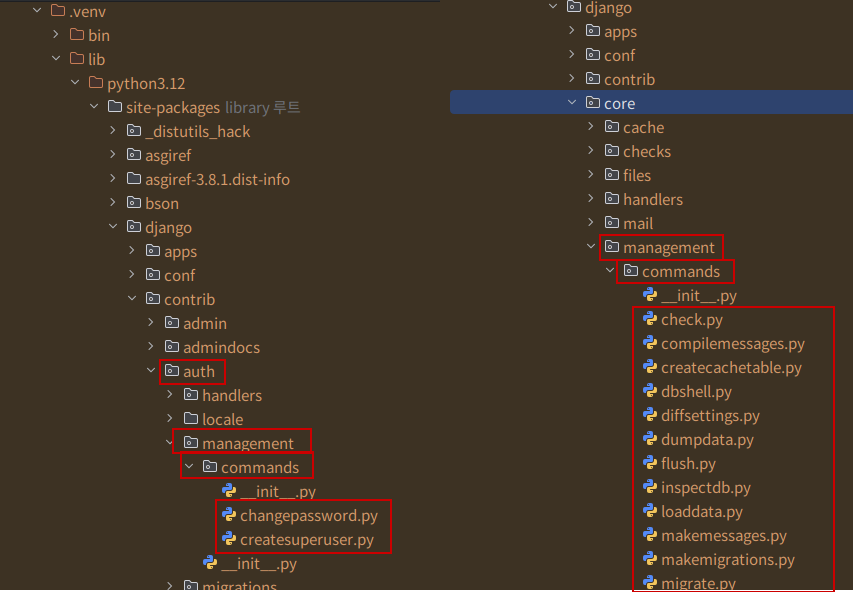
This means, it is possible to create a new command option of 'manage.py' in each application with a same file system like above. To create a superuser with command option, I will create same file system in my user application folder.
1
2
3
4
5
6
7
8
9
: "move to application folder"
mv USER_APP_PATH

: "create a new folder to save command file"
mkdir -p management/commands

: "create a init.py file in each folder"
touch management/__init__.py
touch management/commands/__init__.py
Then in commands folder, I will create a new file name 'mgtest.py'. After creating a 'mgtest.py' file, I can see the mgtest with command 'python manage.py --help'

However, you can not execute this option because command file must have code that define the action for option.
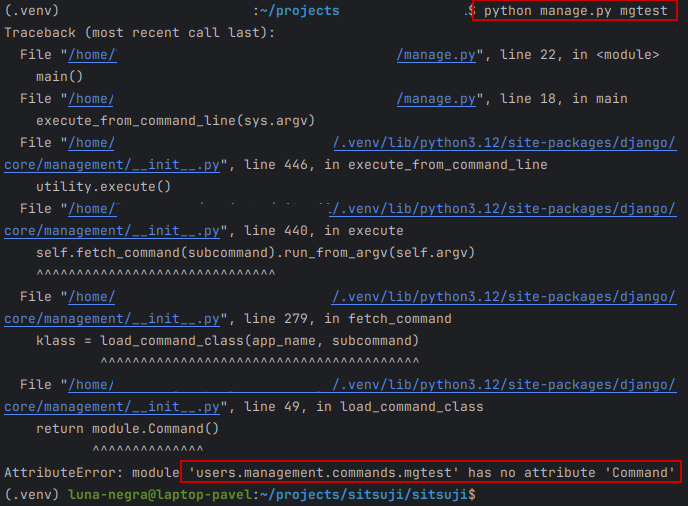
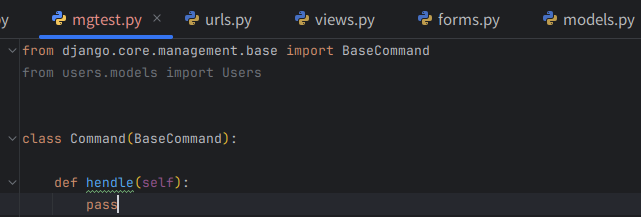
As you can see the error message, you have to write down class named 'Command' which is inheriting 'BaseCommand' in Django.
III. Create a New Command
This class file has a method named 'handle' and this method is charge of logic for new option. So, If I insert print("hello django") in this method, I can see the 'hello django' on the shell as a result of executing command.
1
2
3
4
5
6
7
8
9
: "mgtest.py"
from django.core.management.base import BaseCommand
from users.models import Users


class Command(BaseCommand):

    def handle(self, *args, **kwargs):
        print("hello django")

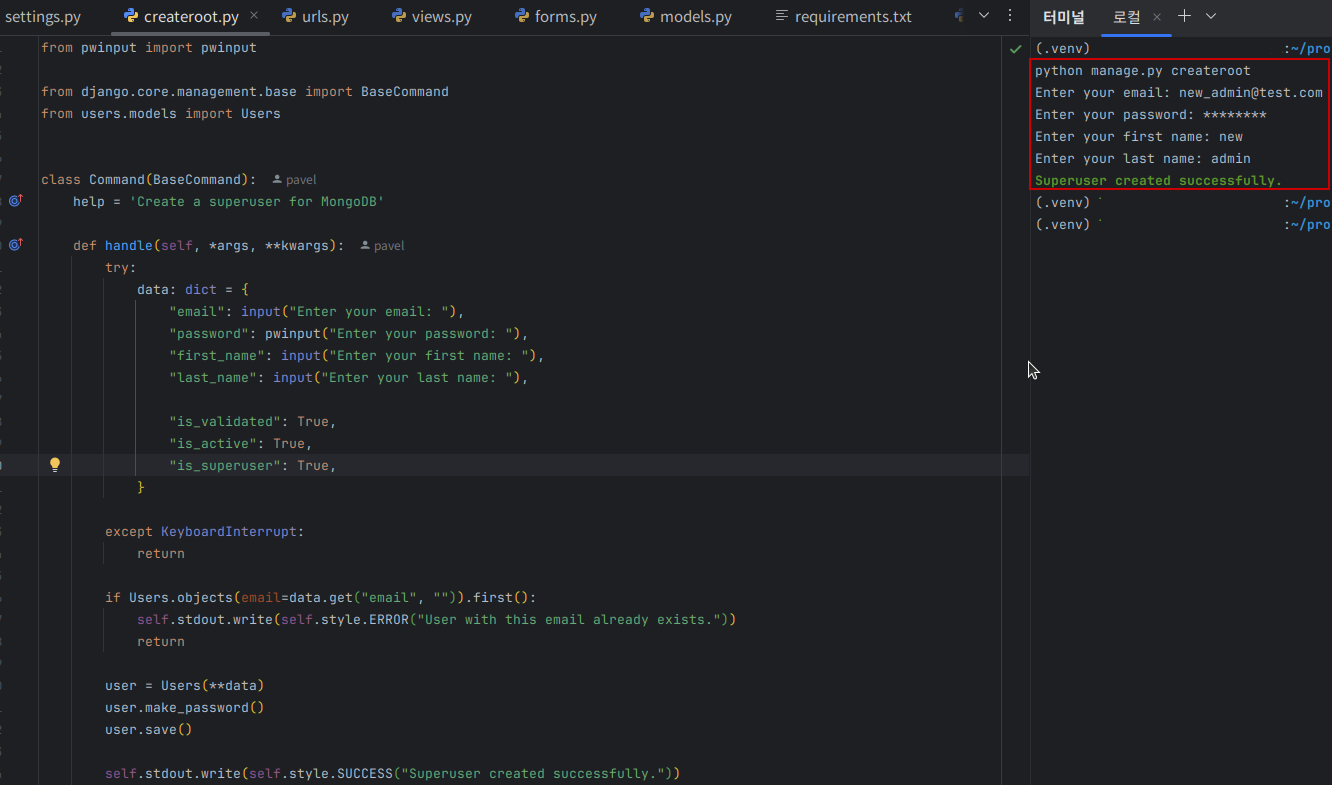
So, If you write down code for creating a superuser, you can create a superuser account via shell. I will change a file name from 'mgtest.py' to 'createroot.py' and build some code lines.
1
2
3
4
5
6
7
8
9
10
11
12
13
14
15
16
17
18
19
20
21
22
23
24
25
26
27
28
29
30
31
: "createroot.py"

from django.core.management.base import BaseCommand
from users.models import Users


class Command(BaseCommand):

    def handle(self, *args, **kwargs):
                try:
            data: dict = {
                "email": input("Enter your email: "),
                "password": pwinput("Enter your password: "),
                "first_name": input("Enter your first name: "),
                "last_name": input("Enter your last name: "),

                "is_superuser": True,
            }

        except KeyboardInterrupt:
            return

        if Users.objects(email=data.get("email", "")).first():
            self.stdout.write(self.style.ERROR("User with this email already exists."))
            return

        user = Users(**data)
        user.make_password()
        user.save()

        self.stdout.write(self.style.SUCCESS("Superuser created successfully."))
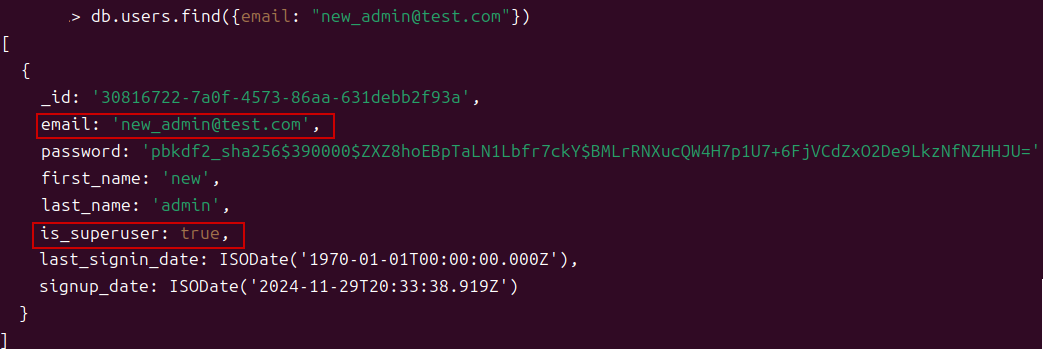
*  My user class have email, password, first_name and last_name fields as required.
*  To distinguish superuser, I insert 'is_superuser' field in my user class.
And I can create a new superuser with 'python manage.py createroot' command
IV. References
N/A