$ 0003. How to Set Dockerd Config
| Author | luna-negra |
| Created On | 2024-07-25 15:21:00+00:00 |
| Edited On | 2024-07-25 15:21:00+00:00 |
| Tags | #docker daemon #docker config #daemon.json #handle dockerd option |
I. Preview
Docker daemon provide many options. In default, docker allows user to connect localhost only or does not support tls and so on. In this reason, you have to apply some docker daemon options if you want to operate your docker server more sophisticate. Let's see how the docker daemon works.
You can check whether the docker daemon is running or not by typing command 'systemctl status docker'. The procedure how docker server starts are described on the file 'docker.service' file.
1
2
3
4
5
#  : "ubuntu 22.04"
#  sudo cat /etc/systemd/system/multi-user.target.wants/docker.service
#
#  : "centos 8 stream"
#  sudo cat /usr/lib/systemd/system/docker.service
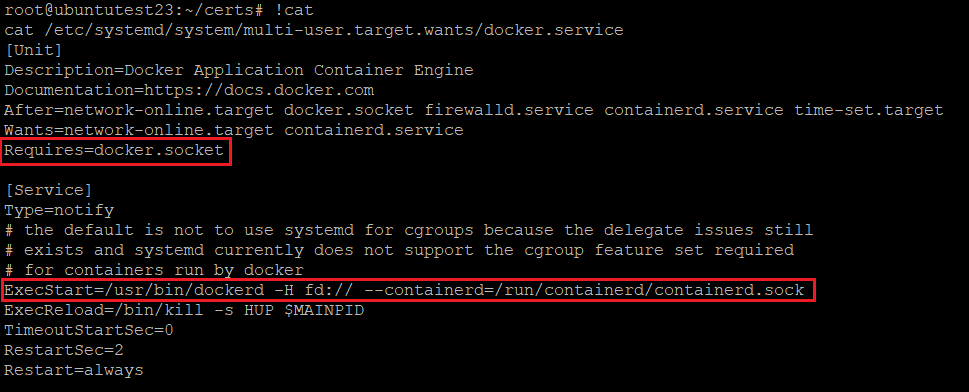
You can see the 'ExecStart' at a 'service' section. If the docker daemon starts, dockerd command will be executed. As you can see, there are some dockerd options which make you to manage docker containers on your host machine.
In addition, there are another service called docker socket and it is required to run docker daemon. Its role is connecting docker-cli and docker server properly so if this socket does not work, you are not able to use docker command.
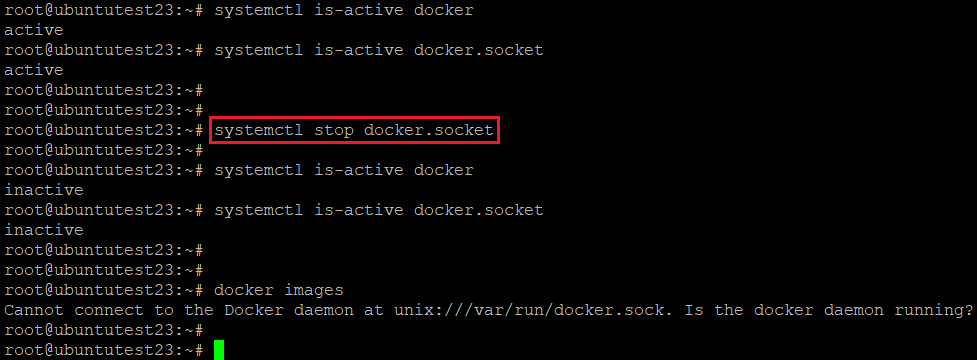
Let's stop the docker daemon and docker.socket service by stopping docker.socket. Then, start docker with 'dockerd' command. you can see the result of docker command without issue in another terminal.
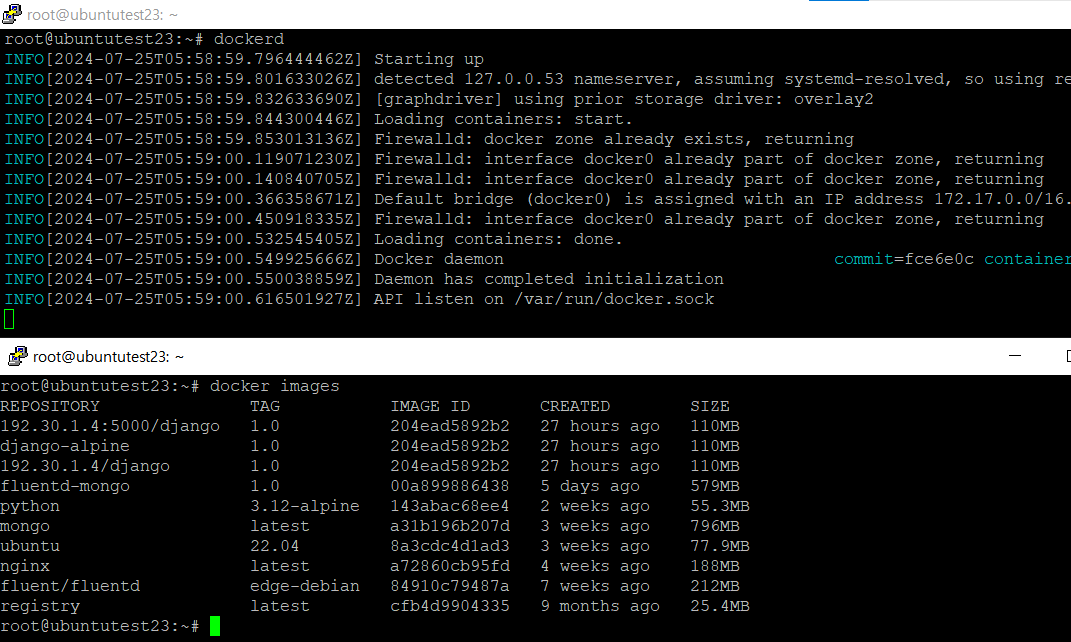
Now, let me start dockerd again with some light options. I just want the docker daemon to see google DNS server as a default and to add host information to connect docker server from a remote. But 'dockerd' command with options can not be executed because option -H with remote address should be run by systemd.
1
2
3
4
5
6
#  : "Start docker daemon with option. "
#  sudo dockerd -H fd://   \
#               -H 192.30.1.4:2375  \
#               --containerd=/run/containerd/containerd.sock  \
#               --dns=8.8.8.8  \
#               --dns=8.8.8.4

Solution of this issue is very easy. You can just add options at 'ExecStart' in the 'docker.service'. Let me do it.
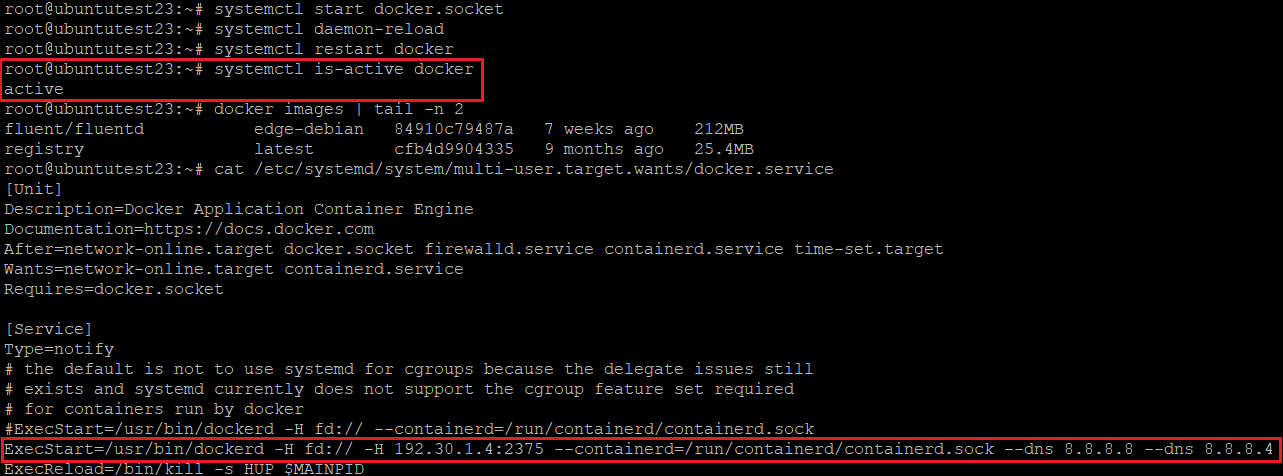
After starting docker daemon, I can connect to my docker server from another remote server.
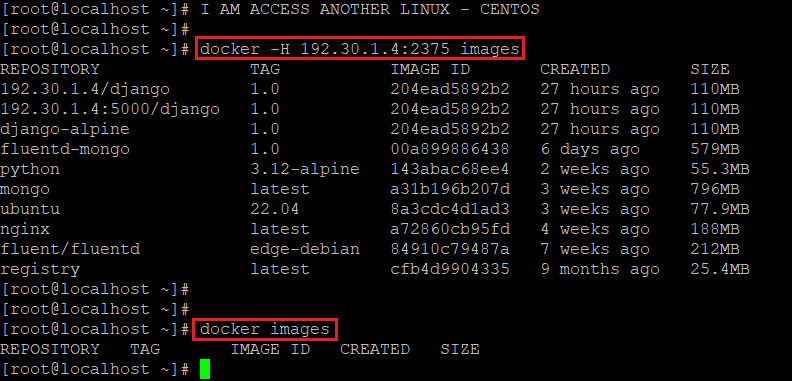
However, this mean has a problem. If you are not familiar with 'service' file and some part are edited by accidentally or mistake, your machine can not work docker daemon properly.
In this reason, Docker provides 'docker' file which contains dockerd option as a variables. All linux service file has function to refer the file, so you rarely have chance to edit another part of 'docker.service' file.
1
2
3
4
#  : " location of 'docker' file on Ubuntu 22.04. "
#  /etc/default/docker
#  : " location of 'docker' file on CentOS8. "
#  /etc/sysconfig/docker
# 'docker' file does not exist in CentOS so you have to create it manually.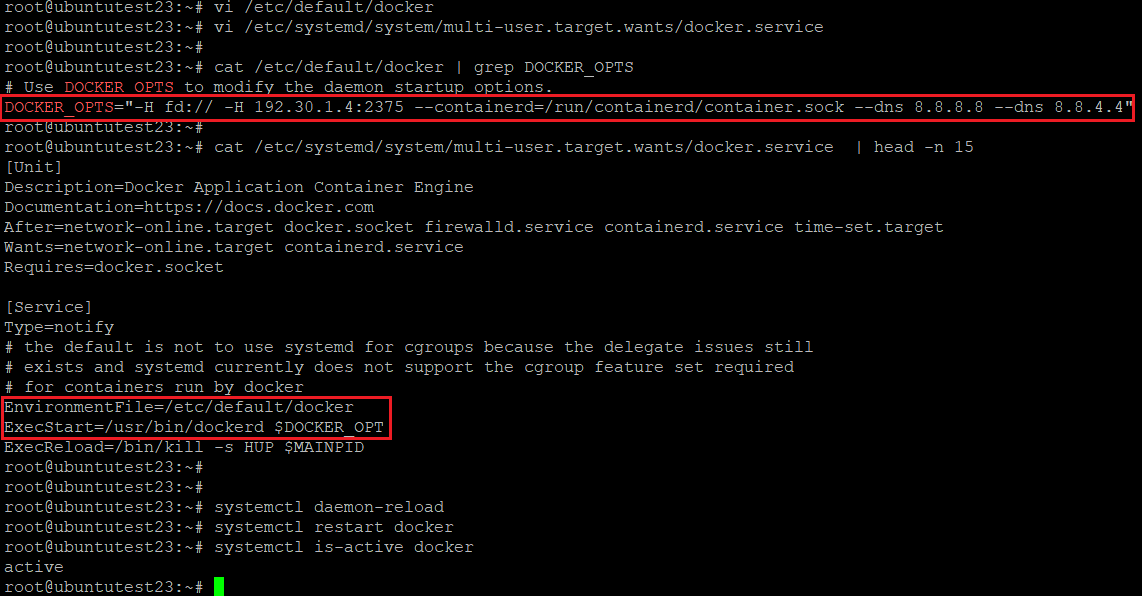
This way reduces the chance that the user wrongly edit the service file because once you add EnvironmentFile and variables for option on the service file, You don't have to open service file anymore.
However, docker option in 'docker' file is relatively hard to manage if you use so many docker option. Because of that reason, Docker is design to see config file 'daemon.json' to organize your option in key-value format.
II. File daemon.json
The file 'daemon.json' should be located on '/etc/docker'. If the docker daemon is started, docker simultaneously look for 'docker' and '/etc/docker/daemon.json' files and apply the options in these files. If the same option flag are on both file, docker daemon will print out errors. Therefore it is recommended to use one of 'docker' or 'daemon.json' file as possible.
Also, docker daemon will refer to the options on 'daemon.json', so remove 'EnvironmentFile' key and edit 'ExecStart' on 'docker.service' file will be changed like below.
1
2
#  : " ExecStart on 'docker.service' "
#  ExecStart=/usr/bin/dockerd
Let me create daemon.json on '/etc/docker' and create contents with options that I used before.
1
2
3
4
5
6
#  : " /etc/docker/daemon.json"
#  {
#    "hosts": ["fd://", "unix:///var/run/docker.sock", """tcp://192.30.1.4:2375"],
#    "containerd": "/run/containerd/containerd.sock",
#    "dns": ["8.8.8.8", "8.8.8.4"]
#  }
#  * Host must contain "unix:///var/run/docker.sock" if you want to use docker command on the docker hosts.
#    It connects docker client on the host and docker server.
#  * There are multiple 'host(-H)' option in the previous command and it could be grouped by json list format.
#    Make sure that the key name should be plural form if you want to assign values as a list form.
If you don't have any incorrect spells on 'daemon.json' file, docker daemon would be run if it is restarted.
Finally, I just want to add more option with private docker registry container. Docker container which exist in docker host can be uploaded to docker registry without TLS, but it needs additional dockerd flag option.
1
2
3
4
5
6
7
8
9
10
11
12
13
14
# : " Pull docker registry - official "
# sudo docker pull registry
#
# : " create and run container for registry1 "
# sudo docker run -d --name registry1 --hostname registry1 \
#                 --publish 192.30.1.4:5000:5000 \
#                 --restart always \
#                 registry
#
# : " create and run container for registry2 "
# sudo docker run -d --name registry2 --hostname registry2 \
#                 --publish 192.30.1.4:5001:5000 \
#                 --restart always \
#                 registry
After running 2 containers, docker host's 5000 and 5001 port will be open.

Docker container can not be pushed to the new docker registries because docker does not allow Non-SSL communication between docker server and registry as a default. In this reason, additional flag should be added to the daemon.json.
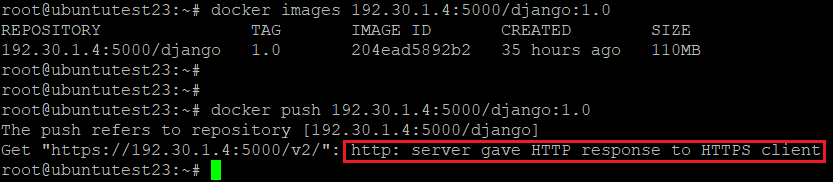
Open 'daemon.json' file and add 'insecure-registries' key and value.
1
2
#  : " Add dockerd flag optional 'insecure-registries"
#  "insecure-registries" : ["192.30.1.4:5000", "192.30.1.4:5001"]
#  * You have to write key and value enclosing with double-quote.
#  * If one key has more than one value, key name should be plural form and values should be in json list.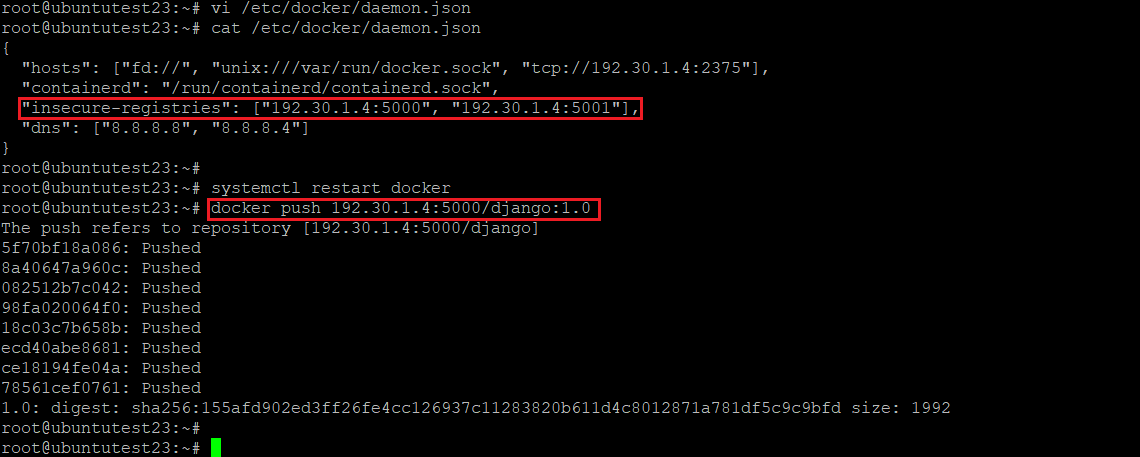
Now, Let me check that the django:1.0 container is successfully uploaded by pulling it from another docker client. I pull that image at the CentOS Linux.
# * Please note that you have to add docker flag option in order to connect the registries.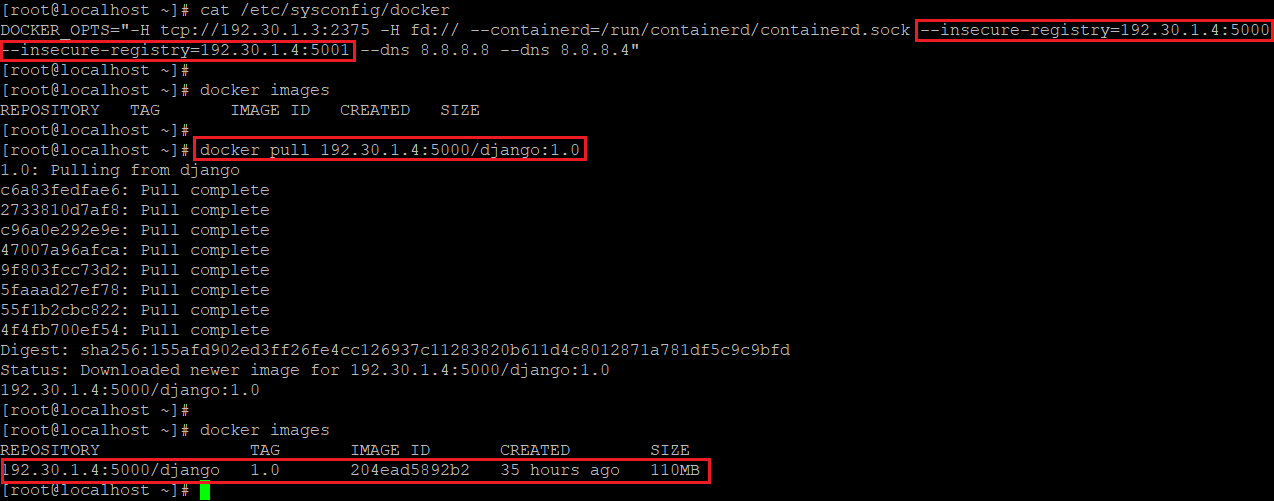
If you want to run docker with applying tls, you have to add dockerd flag option related to 'tls' such as 'tlsverify' or 'tlscacert' and so on. In conclusion, knowing how to use dockerd flag appropriately is the most basic thing to operate your containers safely.
III. Trouble Shooting
If you have incorrect spell on the 'daemon.json', 'docker' or even 'docker.service' file, Docker daemon will not be started. It is very hard to find the error unless you are familiar with docker or linux logging system.
1. Can not Find Config Error
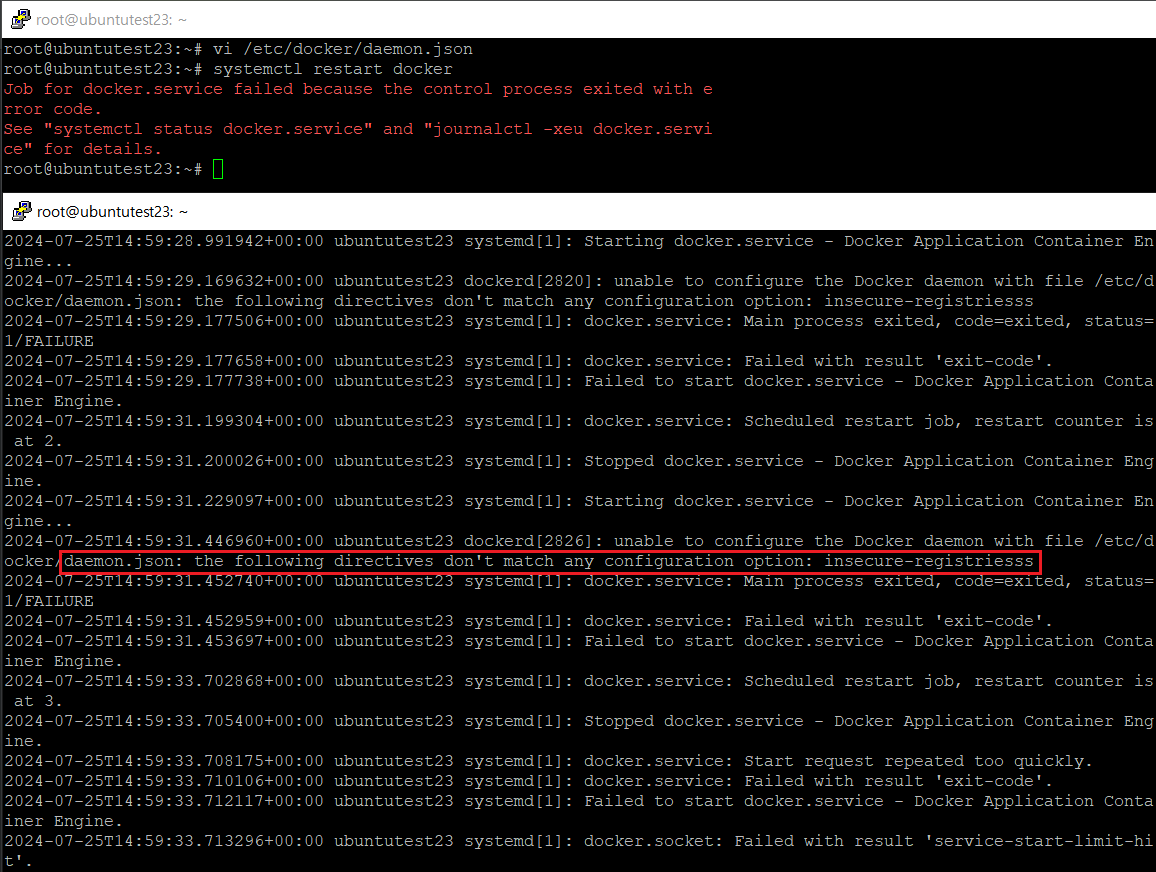
Sometimes, you missed wrong typed character and it would make you annoyed. Here is the easiest way to find an error in your config. All daemons in linux system records their work as a syslog. Ubuntu has it in a file '/var/log/syslog' and CentOS store it in a file '/var/log/messages'.


You can see that which part of your option was wrong by looking over the logs. Intededly, I change the key name 'insecure-registries' as a 'insecure-registriesss'.
2. Docker Daemon can not be started.
When you fix your incorrect config and restart the daemon, you would face the problem that the docker daemon is not restarted. This issue has a simple reason that 'docker.socket' is not running. As you saw the logs at the picture above, 'docker.socket' is also stopped by an error. Sometimes 'docker.socket' exceed the number of 'service-start-limit-hit' and would not start by itself. In that situation, you have to start it manually.
1
2
3
#  : " Restart docker.socket and docker.service"
#  sudo systemctl start docker.socket
#  sudo systemctl start docker
IV. References