$ 0002. How to Write and Build Dockerfile
| Author | luna-negra |
| Created On | 2024-07-23 03:12:00+00:00 |
| Edited On | 2024-08-10 06:56:00+00:00 |
| Tags | #docker container #docker build #Dockerfile #django |
I. Preview
Although the official docker hub website offer so many containers, sometimes we have to make our own container from a basic image. In order to this, we can run basic docker images, install applications that we need in the container and commit that image to create new image.
Here is the example. I want to get a python django image, but official docker hub website does not have it. More details, Django image exist at the hub, but it was deprecated so person who need Django container should create their own django.
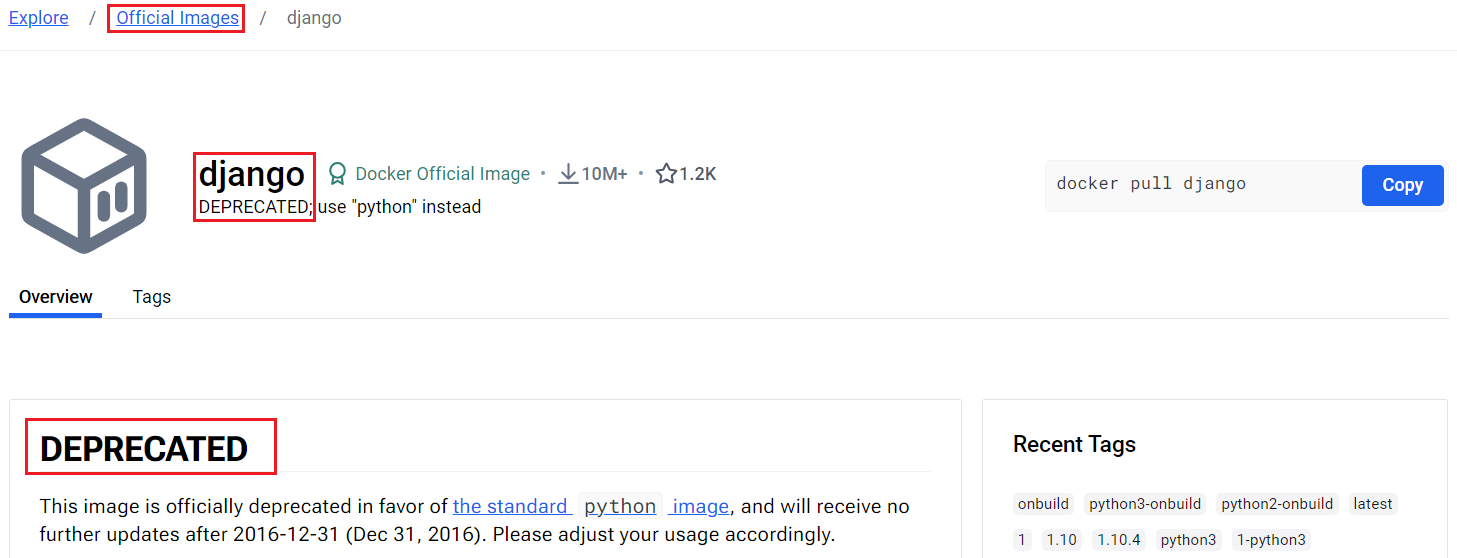
Then, let me make a new django container manually. I will use image 'python:3.12' as a basic image.
1
2
3
4
5
6
7
8
9
10
11
12
13
14
15
16
17
18
19
20
21
22
23
24
25
26
27
28
29
30
31
32
#  : " Pull and run basic image "
#  sudo docker run -itd --name python3 --hostname python3 \
#                       --publish 192.30.1.4:8000:8000 \
#                       python:3.12
#
#  : " Connect to the 'python3' terminal "
#  sudo docker exec -it python3 /bin/bash
#
#  (Prompt will be changed)
#  : " Upgrade pip "
#  pip install --upgrade pip
#
#  : " Install Django: will use django version 4.1.13 "
#  pip install django==4.1.13
#
#  : " Update apt-get "
#  apt-get update
#
#  : " install vim package "
#  apt-get install vim -y
#
#  : " Make Django Project: project name is 'project' "
#  django-admin startproject project
#
#  : " Edit settings.py with vim"
#  vi /project/project/settings.py
#
#  : " Add value '*' to setting key 'ALLOWED_HOSTS' and exit vim"
#  ALLOWED_HOSTS = ['*']
#
#  : " Run Django Server "
#  python /project/manage.py runserver python3:8000
#  *  Django use tcp/8000 as a default web port.
#  *  Please be advised that my docker host server has a NAT IP 192.30.1.4
#  *  You have to create volume to handle the 'settings.py' easily.
#  *  The command related to running django server, has 'python3' as a hostname.
#     - you can see that IP on '/etc/hosts'.
If you follow my 'cookbook' above, you can see the django's green rocket when you access to django's website.
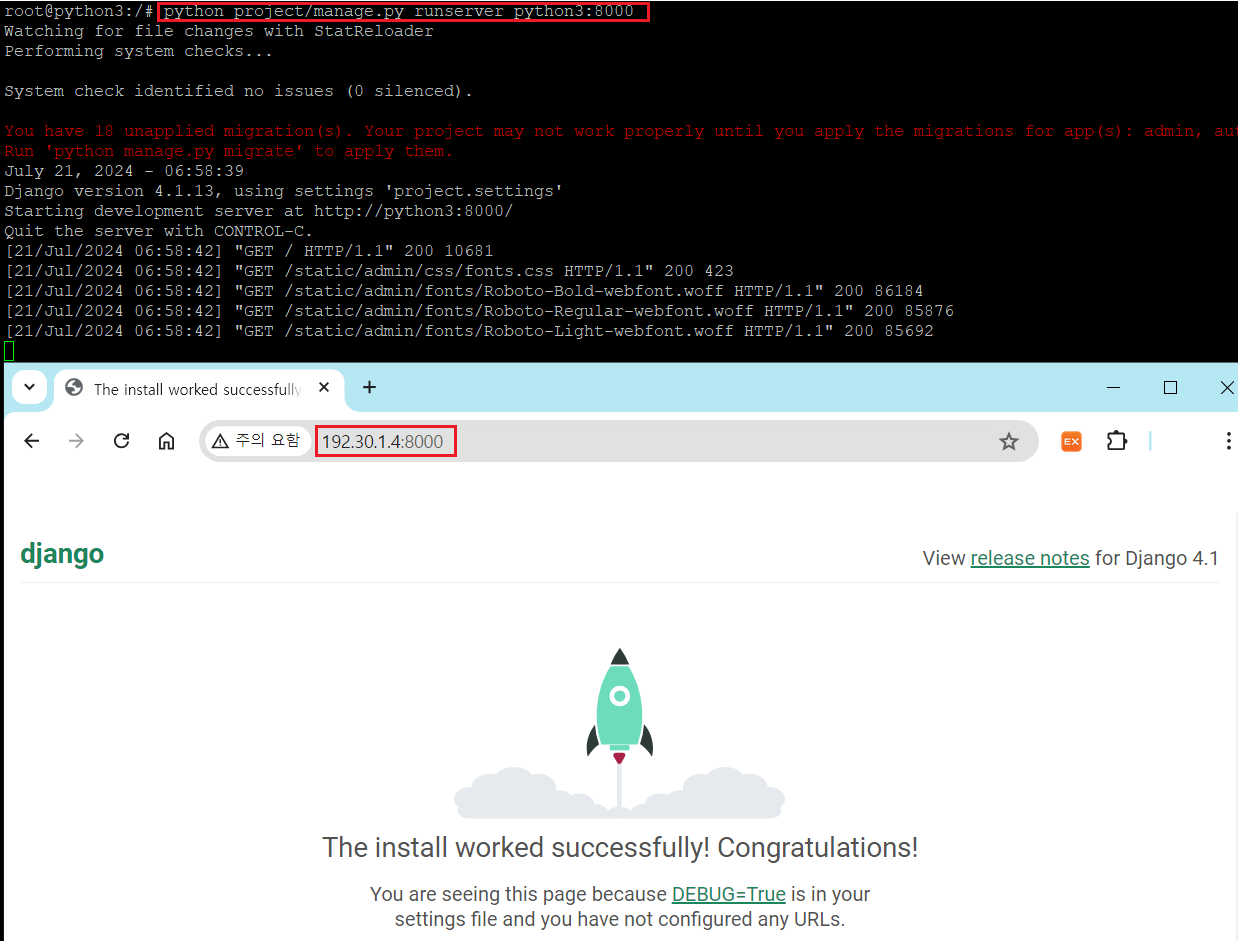
I stop the django server by typing 'Ctrl + C' and exit the container with 'Ctrl + P + Q'. Now I have a django container, so I will convert it into the docker image so that I can use django container instantly.
1
2
3
4
#  : " On the host, convert 'python3' container to new django image "
#  sudo docker commit --author 'pavel' \
#                     --message 'first django image' \
#                     python3 mydjango:1.0

Now, I have a new django container derived from edited container, so I can run django image whenever I want to. Let me run my new image with command below.
1
2
3
4
5
#  : " Run django container with new image "
#  sudo docker run -d --name django --hostname django \
#                --publish 192.30.1.4:8000:8000 \
#                mydjango:1.0 \
#                python /project/manage.py runserver django:8000
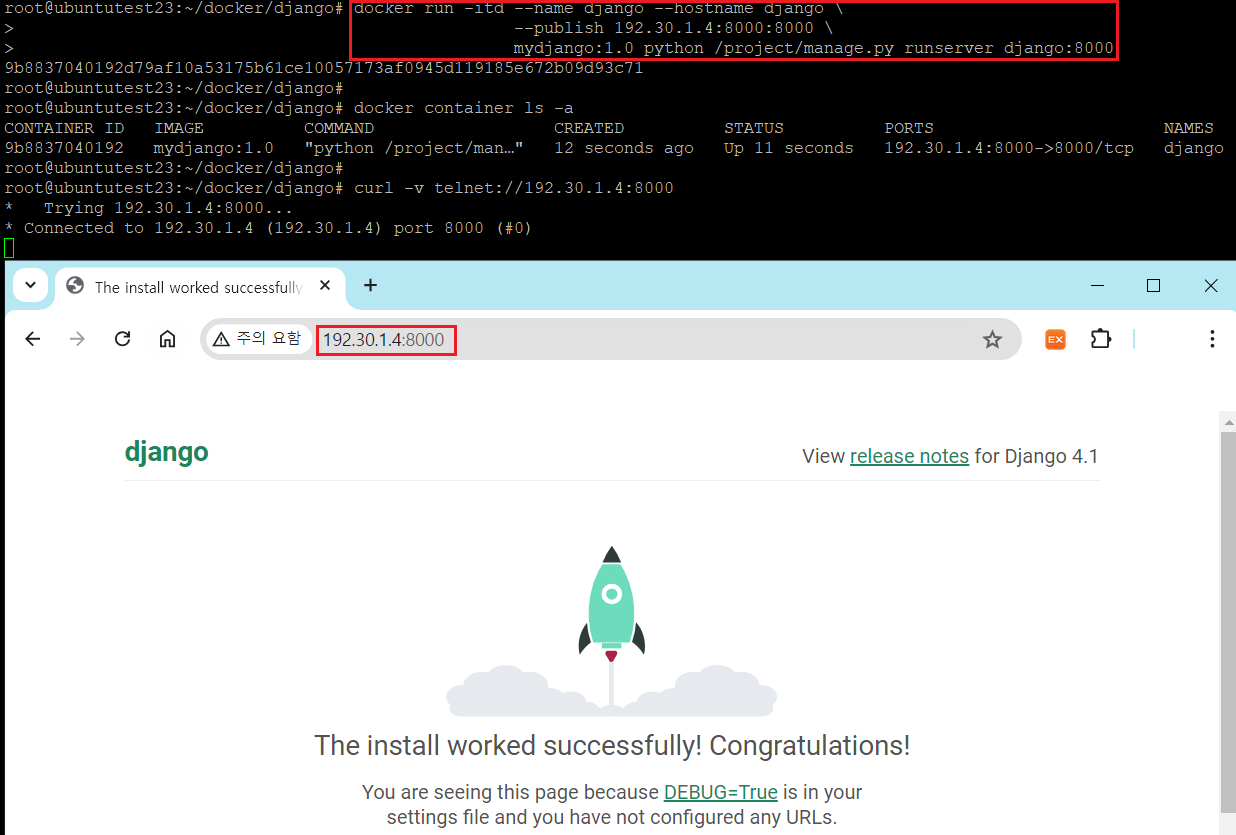
I successfully made a new django image and there is no server issue. Now, let's assume that we have to change massive structure in our new container. We can do it by accessing our container, adding, removing some files, doing some job and committing that container to new image as I have shown at the header of this post. However, this job make a new image be heavy in its size, because changes in docker container will be reflected to the new container as a layer form. You can see it with command 'docker history [IMAGE_NAME:TAG]'
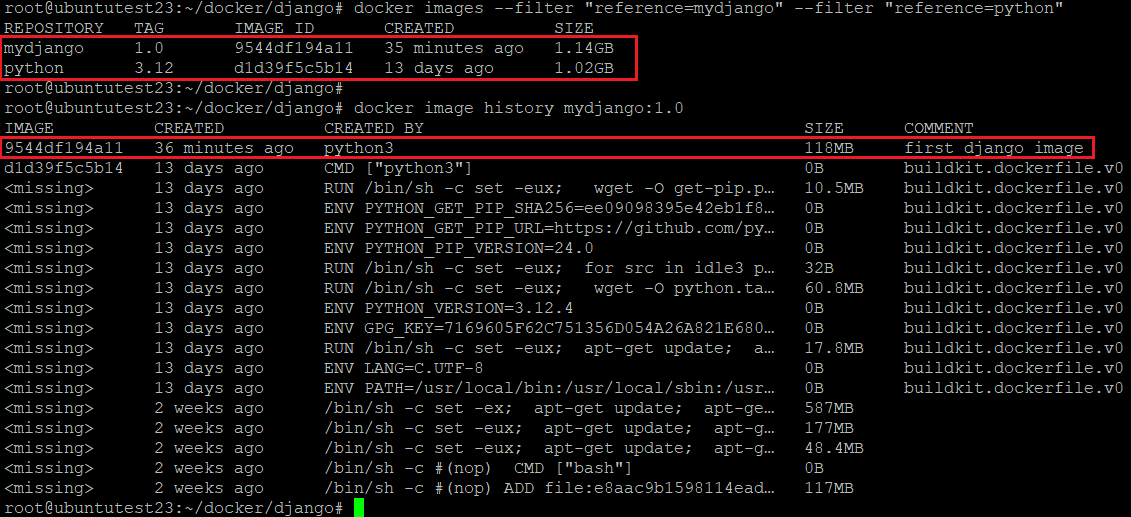
I will remove vim package from the container named 'django', which is derived from docker image 'mydjango:1.0' and rebuild image named as 'mydjango:1.1'. After that, let's check the size of the image 'mydjango:1.1'. Will the size of 'mydjango:1.1" be lighter than 'mydjango:1.0'?
1
2
3
4
5
6
7
8
9
10
11
12
13
#  : " Remove 'vim' package on the 'django' container "
#  sudo docker exec django apt-get purge vim -y
#
#  : " Check the 'vim' package is successfully removed "
#  sudo docker exec django dpkg -l | grep vim
#
#  : " Commit 'mydjango:1.1' docker image from container 'django' "
#  sudo docker commit --author pavel \
#                     --message 'second django image' \
#                     django mydjango:1.1
#
#  : " Check the size of new image 'mydjango:1.1' "
#  sudo docker images | grep mydjango
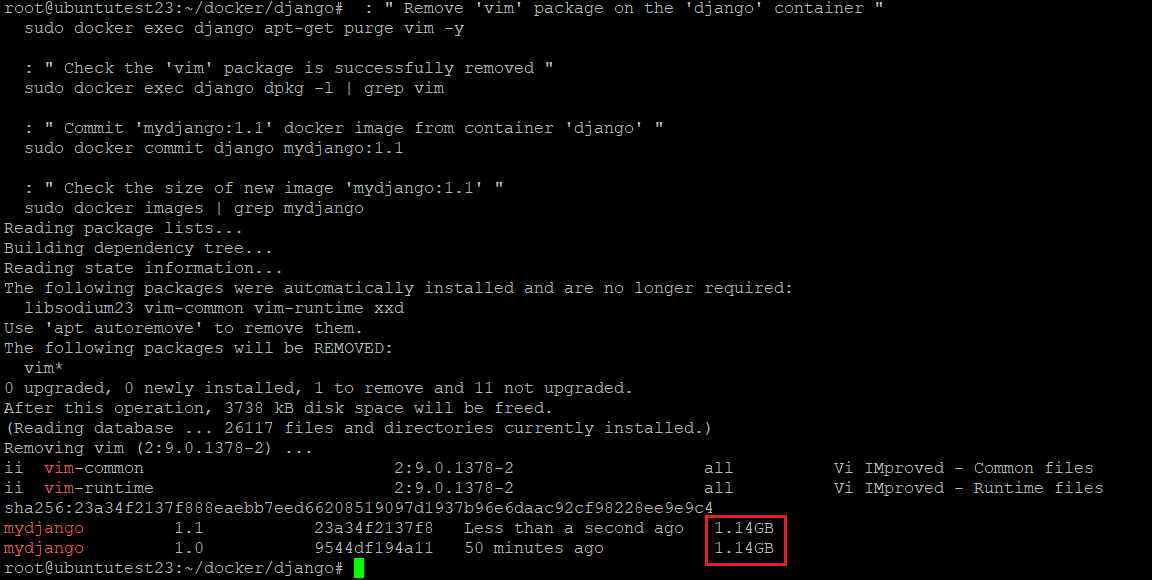
The size of new image is not decreased, because new layer is just added to the previous image even thought the files on the container are removed.

Therefore, it is better to create new image from the official, lightweight docker image than from the edited container. Also, it is impossible to remember all procedures even we've done a week ago, so we need to record our works as a script or something.
Docker can build images automatically by reading the 'instructions' from a Dockerfile. With Dockerfile, we can edit instructions to build a new image only from the official images so our new image have less chance to become 'obesity'.
II. Dockefile Syntax
Dockerfile is a kind of scripts. But it can be run with only docker, So syntax of dockerfile is quite a different from bash or other programming language. Dockerfile is consist of pairs of 'instruction' and 'argument'. 'instruction' means the work type that docker should do, and 'argument' is like a materials.
Even thought there are so many 'instruction' keyword, I will show some 'instruction' that is frequently used.
| * FROM | Basic docker image to create new image. |
| * LABEL | Record metadata for new container such as author or purpose etc. |
| * RUN | Enumerate the command that will be executed during when the new image is created. It effects same as 'docker exec' command. |
| * CMD | Evince the command that will be executed when the container was created from the image and run. It effects same as 'docker exec' command but can be used only once in one Dockerfile. Therefore, it is generally used to execute 'service start command'. |
| * EXPOSE | Assign the container's service port. It does not connect container port and host port as a NAT. But it tells that which port is intended to be published to person who are about to use the container. |
| * VOLUME | Connect container's path to the docker volume folder on the host. Its argument should be JSON Array with "double-quote" or plain string path / docker volume name . it make results same as '--volume' option ex) VOLUME /test1 /test2 == --volume [DOCKER_VOLUME1]:[CONTAINER_NAME}:/test1 --volume [DOCKER_VOLUME2]:[CONTAINER_NAME}:/test2 ex) VOLUME ["/test1", "/test2"] == --volume [DOCKER_VOLUME1]:[CONTAINER_NAME}:/test1 --volume [DOCKER_VOLUME2]:[CONTAINER_NAME}:/test2 |
| * WORKDIR | Assign the working path on the image. If you execute command with 'RUN' instruction after declare 'WORKDIR', 'RUN' instruction execute its argument at the path 'WORKDIR' |
| * USER | Changing OS Username of image. |
| * Copy | Copy the file on the host to the image's path. |
| * ADD | Copy the file on the host to the image's path but it can also extract the compressed files or copy all files from a remote url. |
| * ENV | Set the environmental variables on the image |
III. Example of Dockerfile to Create Django Image
Refer to the procedure on the 'Preview' section, let me write down a Dockerfile to create new Django image. With Dockerfile, I will make one docker volume so that the web contents on the container will be backed up at the host in order to conserve data.
First I create an empty forder on the host to store docker contex. After that I create 'Dockerfile' in it.
1
2
3
4
5
6
7
#  : " Make empty folder and move into it "
#  sudo mkdir django
#  cd django
#
#  : " Create Dockerfile and open it with vi"
#  touch Dockerfile
#  vi Dockerfile
In Dockerfile, write down the procedure to create django images with Dockerfile 'instruction' and 'arguement'
1
2
3
4
5
6
7
8
9
10
11
12
13
14
15
16
17
18
19
20
21
22
23
24
25
26
27
28
29
#  : " Assign basic image to use"
#  FROM python:3.12
#
#  : " Assign working directory on the image.
#    If the path not exist, docker automatically create folder and assign it as a WORKDIR."
#  WORKDIR /django/
#
#  : " Upgrade pip and install django version 4.1.13"
#  RUN pip install --upgrade pip
#  RUN pip install django==4.1.13
#  RUN django-admin startproject myproject
#
#  : " edit 'ALLOWED_HOSTS' on 'settings.py' file.
#    'settings.py' files are created on the path '{project_name}/{project_name}'/"
#  RUN sed -i "s/ALLOWED_HOSTS = \[\]/ALLOWED_HOSTS = \['\*'\]/" ./myproject/myproject/settings.py
#
#  : " Create new docker volume and connect it to the new container's django project folder"
#  : " In this process, I did not install vim package on my django image so hvae to make a volume on the host."
#  : " This instruction is optional because I can create volume in command 'docker run' with '--volume' option."
#  VOLUME ["/django/myproject/"]
#
#  : " Assign service port number which new django container is serving."
#  EXPOSE 8000
#
#  : " Relocate WORKDIR to create django app."
#  WORKDIR './myproject'
#
#  : " Assign commands to start django server when the container is started."
#  CMD python /django/myproject/manage.py runserver 0.0.0.0:8000
#  *  Django service must be start with the host 0.0.0.0 or host machine's IP because container's ip is not fixed.
#  *  As a same reason, 'ALLOWED_HOSTS' in 'settings.py' file must be changed as ['*']
The contents of 'Dockerfile' will be shown as below.
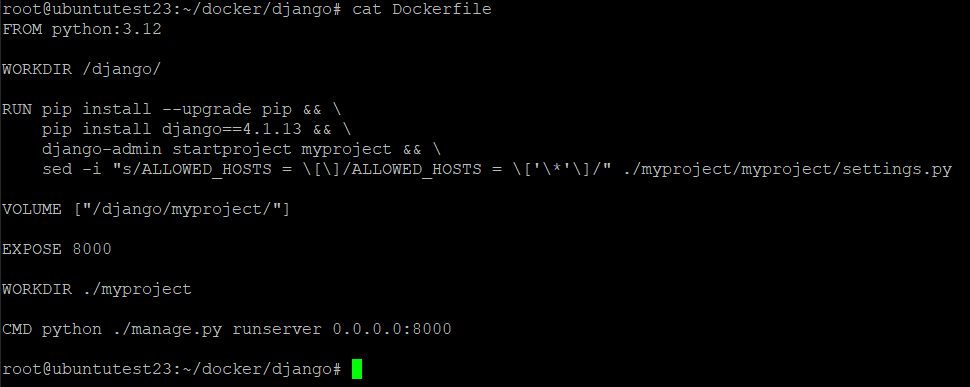
It is better to aggregate arguments of instruction 'RUN' with '&&' and '\', because each RUN create each image layer so the new image have some possibility to be heavy.
Now, Let me build a new django image from my Dockerfile by executing command below.
1
2
#  : "Build docker image from Dockerfile."
#  sudo docker build -t django:1.0 .
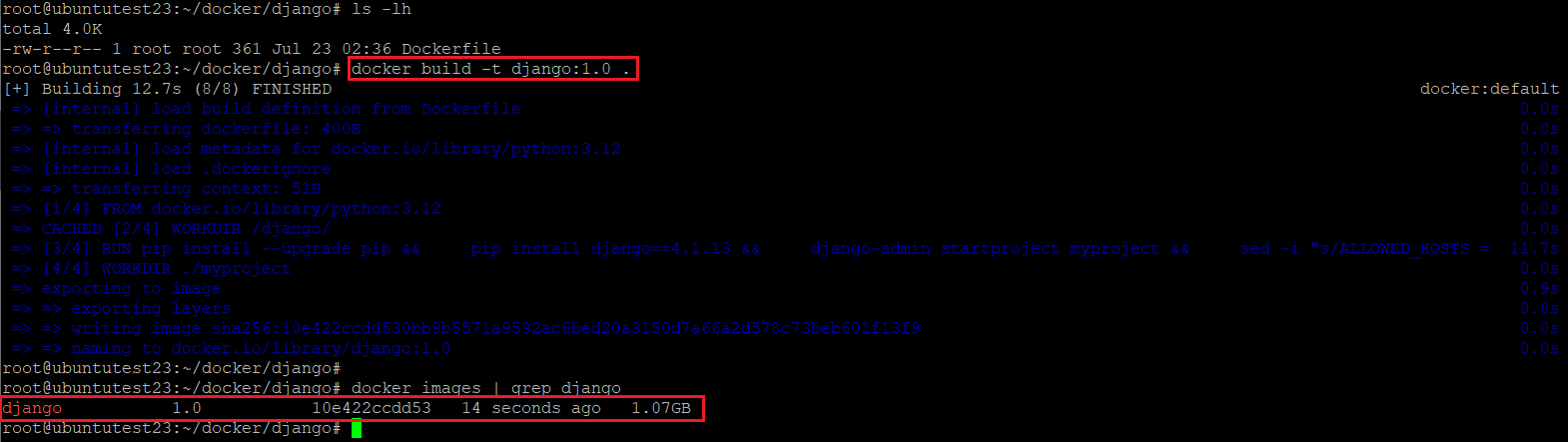
The new django image has less size than the image - mydjango:1.0 - which was manually created. The reason is simple that Dockerfile only has a less 'instruction' so it was reflected on the image with less layer.

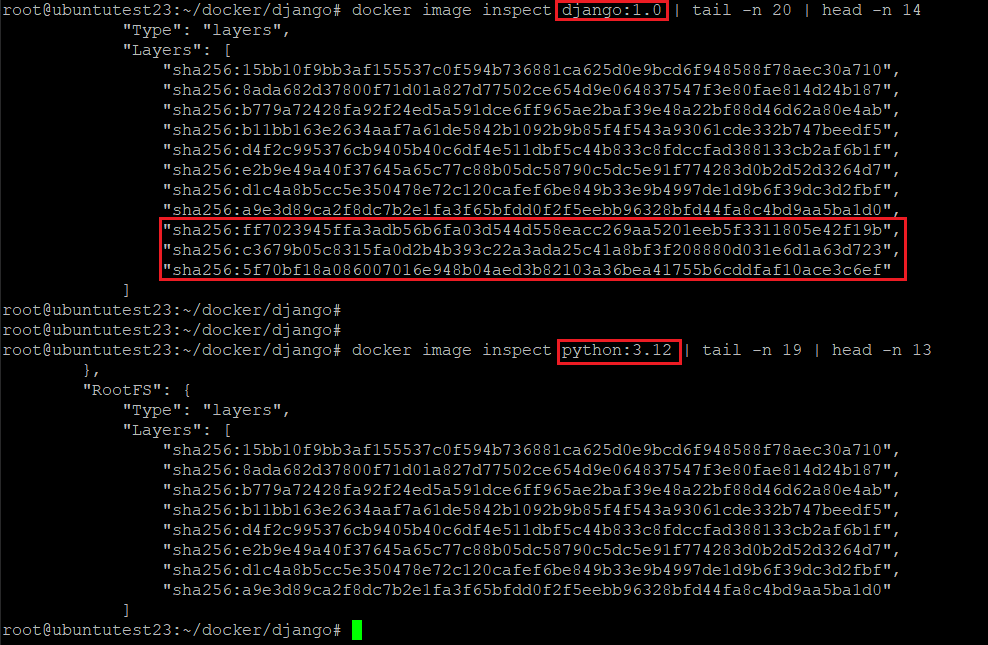
The new django image was created without any error, so I can run it with 'docker run' command. When the container is run, you can connect to the django's default web page.
1
2
3
4
#  : "Run container from the new django image"
#  sudo docker run -d --name django --hostname django \
#                     --publish 192.30.1.4:8000:8000 \
#                     django:1.0
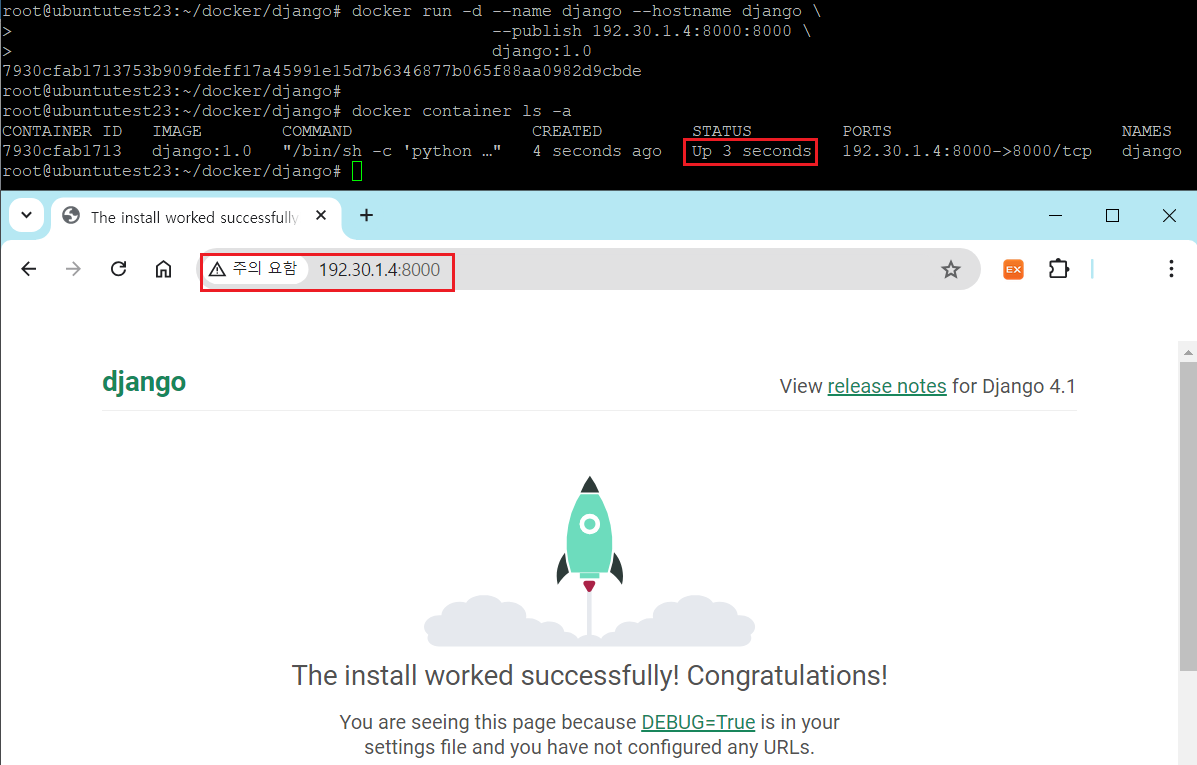
As you know, I did not install vim on the django container, so I have to change the django settings or add files via 'docker volume'. Without connecting to the container, I can manage the folders and files related with django at the host machine. If you change the settings.py, you can apply it just by restarting django container.

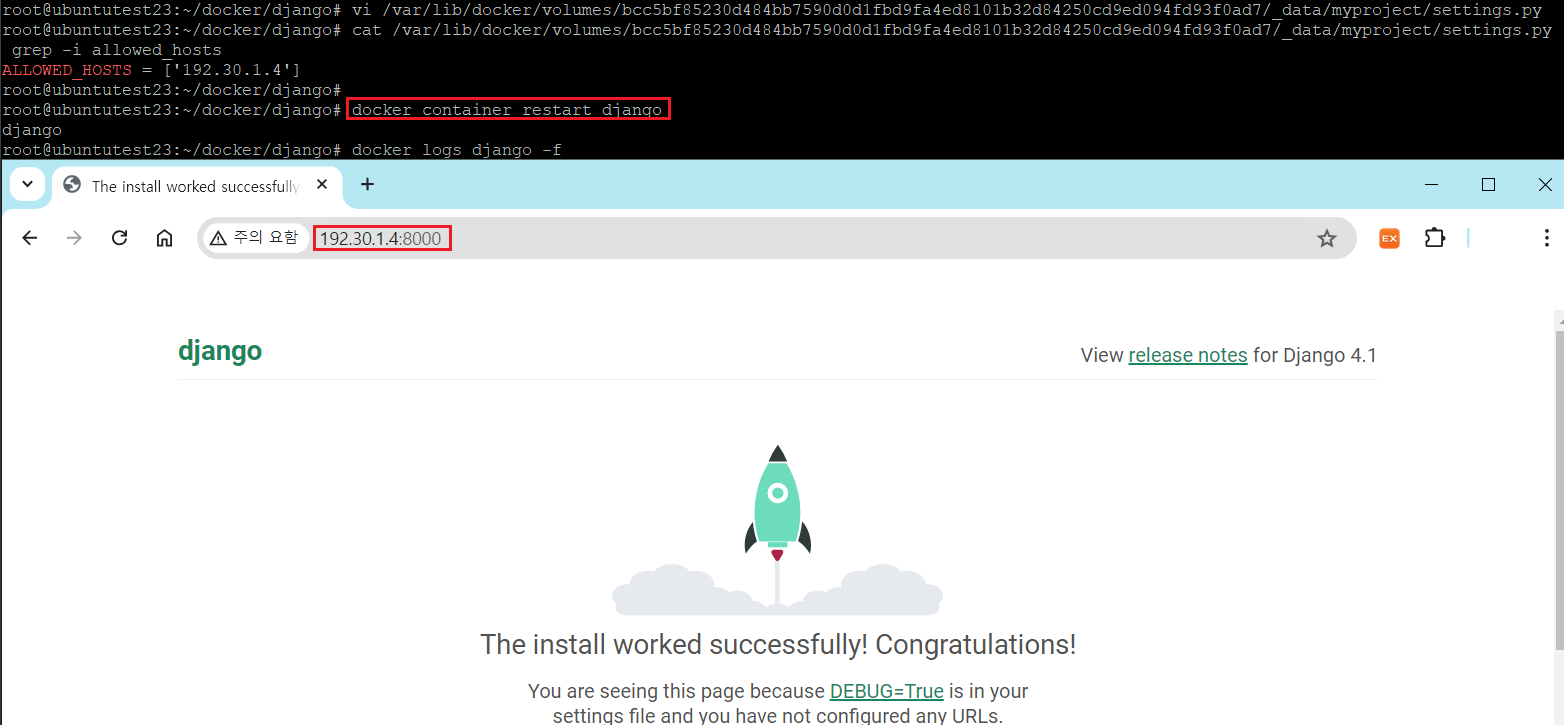
Be advised that you can fild container's docker volume by command 'docker container inspect'.
1
2
#  : " Print detail information about docker conatiner."
#  sudo docker container inspect [CONTAINER_NAME]

IV. Reference