$ 0020. How to Write Docker-Compose file
| Author | luna-negra |
| Created On | 2025-01-16 07:00:00+00:00 |
| Edited On | 2025-01-20 02:49:00+00:00 |
| Tags | #docker container #docker build #docker compose |
I. Preview
If you create a bunch of containers, and they are working in a single system, you have to control container separately.
For Example, there are 3 containers for database, backend api and frontend web. You have to run each container with command as well as create 3 Dockerfiles.
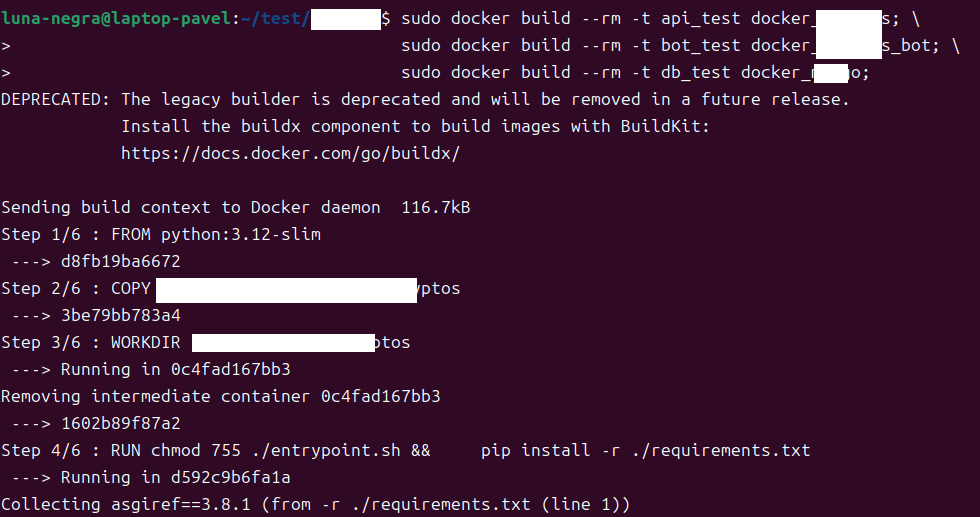

Controlling your docker containers with only Dockerfile is time spending work.
Even if these containers makes a one system and you do some mistake during controlling container, there would be a critical results.
Is there any easy way to create, run my docker containers?
If you have a same question like me, you may consider to use docker-compose
II. What is Docker Compose?
Docker compose is a tool for defining conditions of each container and running multiple containers, which are consist of a specific system.
This tool makes you do type a simple docker-compose command line to start or stop all containers defined in docker-compose.yml file.
'docker build' command finds 'Dockerfile' in its path.
Similarly, 'docker-compose' command search YAML file named 'docker-compose' or 'compose' and execute instruction written in that file.
The difference between 'docker-compose' and 'compose' is a docker-compose version. 'docker compose' is older one and 'compose' was introduced in docker compose version 2.
Current major version of docker-compose in January 2025 is 3, so you can use one of them without any problem.
If both files are exist in one folder, docker-compose will execute 'compose' YAML file.
Docker compose file(YAML file) has some elements named "version", "services", "networks", "volumes" and so on.
"version" define the file version of docker compose and it would have a value as a current version of docker-compose.
The value of version must be a string so please encapsule with '' or "".
Recently, docker-compose does not recommend set the version in docker-compose file, so you do not have to write it on docker-compose file.
1
2
# : "version section"
version: '3.8'
"services" element is a core section which defines containers.
It has a sub-element like "image", "ports", "volumes" which are set as an option in 'docker run' command.
1
2
3
4
5
6
7
8
9
10
11
12
13
14
15
16
17
18
19
20
21
22
23
24
# : "services section"
# : "if you want to run service from image directly"
services:
  SERVICE_NAME1:
    image: IMAGE_NAME1:IMAGE_TAG1
    ports:
      - "CONTAINER_SERVICE_PORT:HOST_PORT"
    network:
      - DOCKER_NETWORK_NAME

# : "if you want to run service with building Dockerfile"
  SERVICE_NAME2:
    build:
      context: .                      // path the Dockerfile is located in.
      dockerfile: Dockerfile
    environment:
      ENV_VAR_NAME1: ENV_VAR_VALUE1
      ENV_VAR_NAME2: ENV_VAR_VALUE2
    network:
      - DOCKER_NETWORK_NAME
    volume:
      - DOCKER_VOLUME_NAME:CONTAINER_PATH
      - HOST_VOLUME_PATH:CONTAINER_PATH     // starts with dot(.) or slash(/)
   ...
"networks" and "volumes" define docker network and volume. Its effect is same as command 'docker network' or 'docker volume'.
1
2
3
4
5
6
7
8
9
10
11
: "Networks and Volumes Section"
networks:
  DOCKER_NETWORK_NAME:
    driver: host              // default is bridge
    ipam:
      config:
        - subnet: 192.168.100.0/24

volumes:
  DOCKER_VOLUME_NAME:
    driver: local
In summary, docker-compose file define how to create multiple containers and start them, instead of typing docker command line by line.
III. Install Docker Compose
Docker compose is a convenient utility to control docker containers,
>unfortunately, it is only contained in docker desktop distribution,
so If you installed dockerd with apt-get or yum, you have to install docker-compose standalone.
Therefore, docker compose must be installed before using docker-compose. Here is a cookbook to install docker-compose in Ubuntu.
[ Download and Install Docker-Compose with 'curl' Command]
Download and install docker-compose files by executing command below.
1
# sudo curl -SL https://github.com/docker/compose/releases/download/v2.32.4/docker-compose-linux-x86_64 -o /usr/local/bin/docker-compose

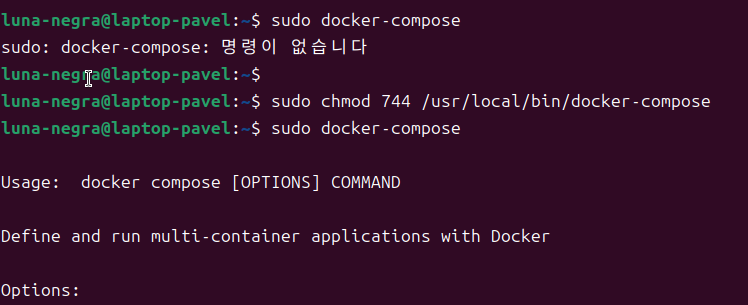
After installing files from curl, you can find 'docker-compose' file in /usr/local/bin.
However, it does not have any execute permission, assign +x permission on that file. After that, you can use docker-compose command.
IV. Example of Writing Docker Compose
Then, let me create a docker compose file for my project. My project is consist of 3 processes and each process will be running in separate container.
- DB - Mongo Container
- API - Backend Django Rest Framework Container
- BOT - Telegram Bot Container
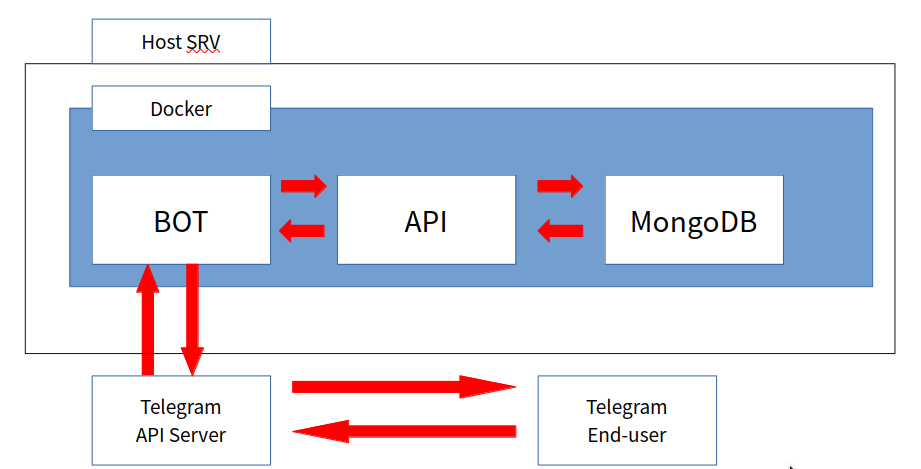
API container connected to DB and BOT container, and all containers do not allow external user to access them except telegram API communication.
For this structure, I can create a docker-compose.yml file on my project root folder.
1
2
3
4
5
6
7
8
9
10
11
12
13
14
15
16
17
18
19
20
21
22
23
24
25
26
27
28
29
30
31
32
33
34
35
36
37
38
39
40
41
42
43
44
45
46
47
48
49
# : "docker-compose for my project"
# version: "3.8"

# services:
#   db_test:
#     build:
#       context: ./docker_mongo
#       dockerfile: Dockerfile
#     container_name: db_test
#     hostname: db_test
#     ports:
#       - "127.0.0.1:27017:27017"
#     volumes:
#       - /backup/test/db:/data/db
#     networks:
#       - test_network1
#     command: ["mongod", "--auth"]
#
#   api_test:
#     build:
#       context: ./docker_****
#       dockerfile: Dockerfile
#     container_name: api_test
#     hostname: api_test
#     ports:
#       - "127.0.0.1:8000:8000"
#     environment:
#       - ****_MONGODB_HOST="db_test"
#       - ****_EMAIL_HOST_USER="mymail@9mail.com"
#       - ****_EMAIL_HOST_PASSWORD="abcdefghijklmnop"
#     networks:
#       - test_network1
#
#   bot_test:
#     build:
#       context: ./docker_****
#       dockerfile: Dockerfile
#     container_name: bot_test
#     hostname: bot_test
#     environment:
#       - ****_API_HOST_IP="api_test"
#       - ****_BOT_API_TOKEN="THISISACREDENTIAL.FALSEKEY"
#     networks:
#       - test_network1
#
# networks:
#   test_network1:
#     driver: bridge
#
After writing and saving docker-compose.yml file, execute command 'docker-compose up -d' at the path where the docker-compose.yml file is located.
This command will build new image from Dockerfile (as 'docker-compose build') if there is no image, and run containers in the same time.
1
# docker-compose up -d
# '-d' option means background. if you missed it all container logs are printed out on your monitor.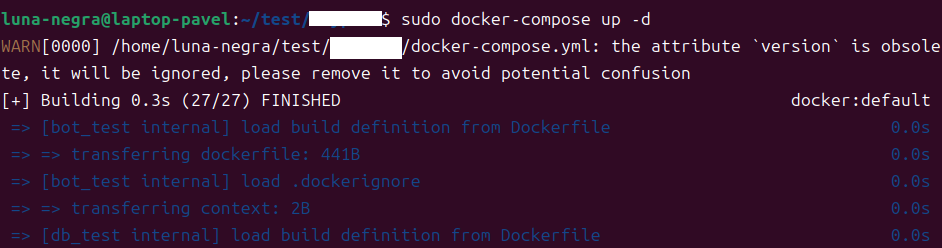
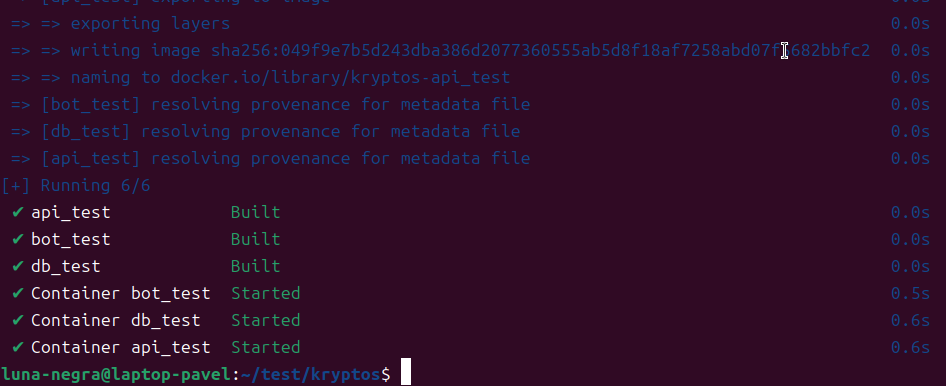
If there is no error, then you can see the all containers defined in docker-compose are running well.

You do not have to stop all container with typing command for each container. you can stop all container defined in compose with, 'docker-compose down' command.
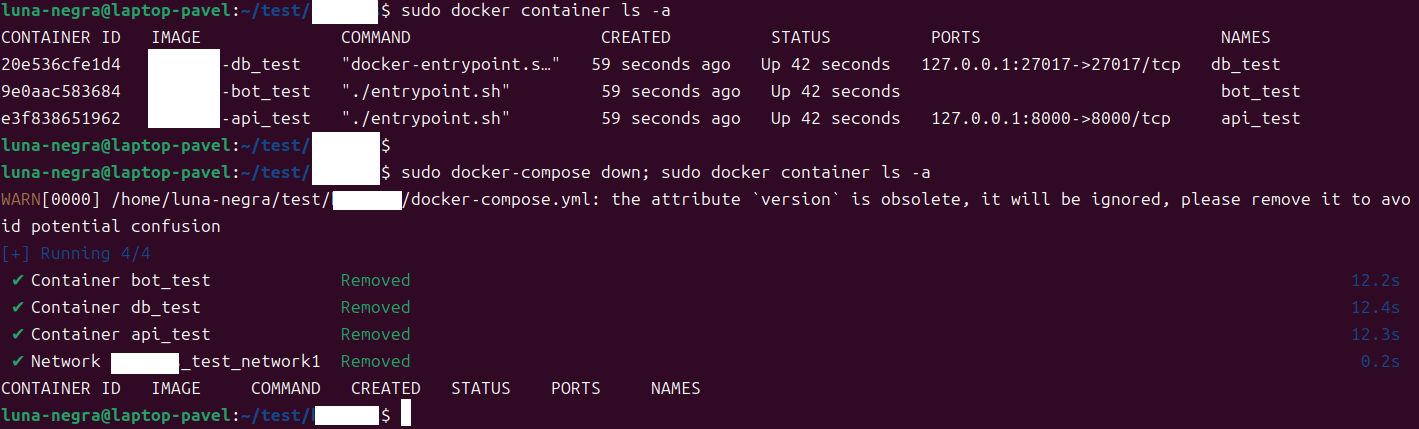
The command 'docker-compose' will affect on all containers defined in docker-compose file.
Therefore, if you want to restart or remove all containers, just execute 'docker-compose restart' or 'docker-compose rm'
Images which are created by build process in docker-compose.yml will be named 'project_folder_name'-'container_name'
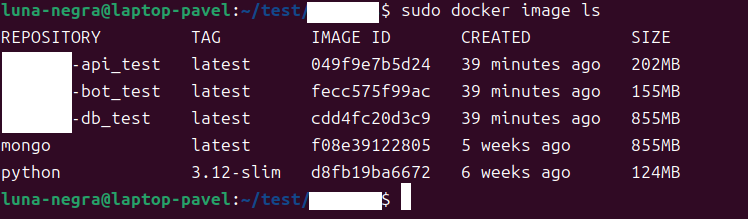
If there is a change in source files for containers, you have to recreate your image with command 'docker-compose commit'
Changes in source will not be applied on image automatically, so you have to execute 'docker-compose commit' command after edit source.

If you want not to use project and container name in your image name, you have to create your own image with custom name and tag first,
then write a docker-compose file not with 'build' but 'image'
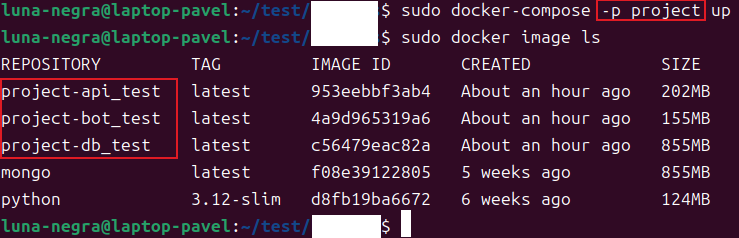
If you want to set a custom project name on your docker-compose, add option '-p [PROJECT_NAME]' when you do 'docker-compose up' command.
Be advised that the image name does not change if there are previous image in the result of 'docker image ls'.
IV. References